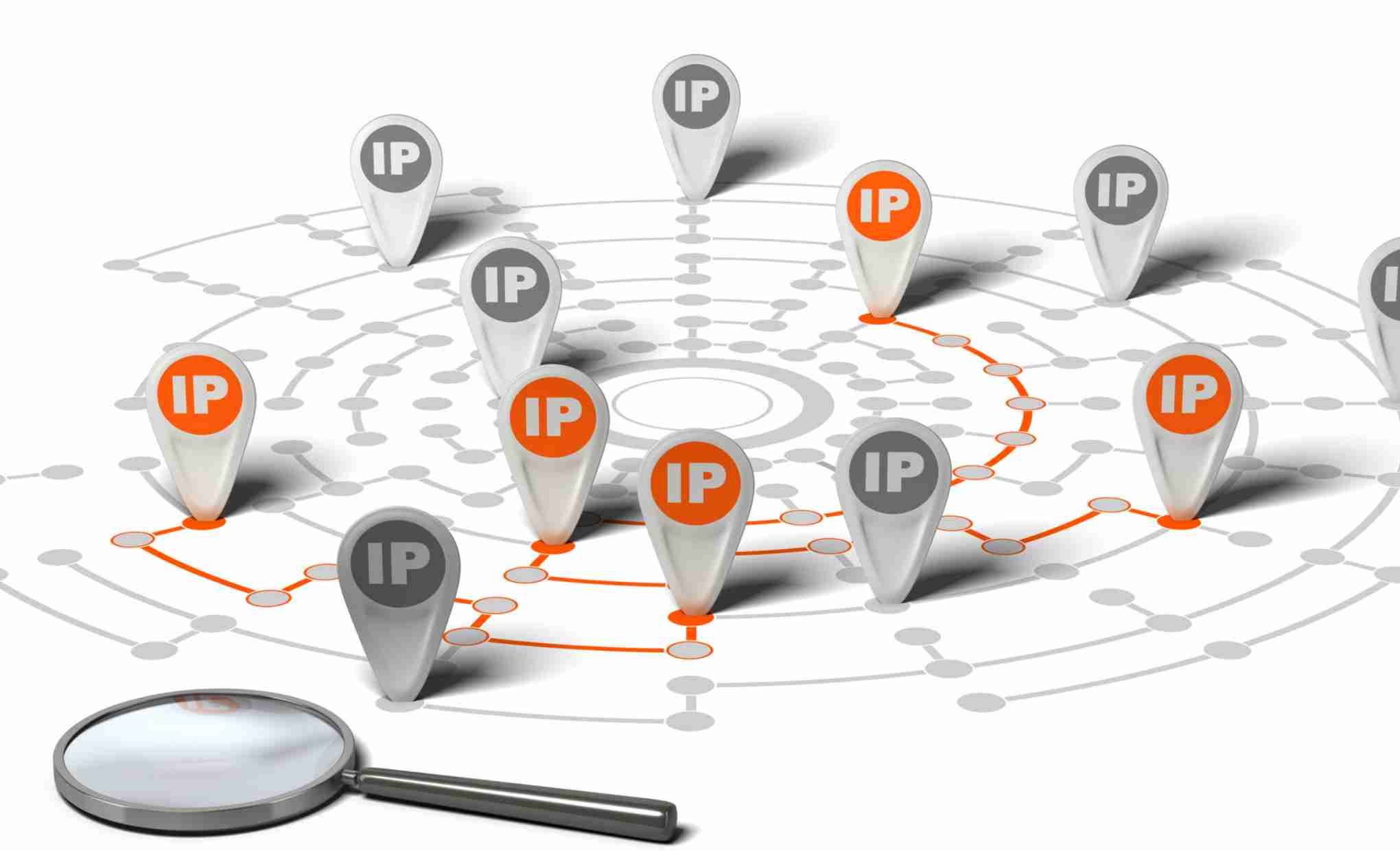
In today’s interconnected world, each device that connects to a network has a series of unique identifiers that allow it to be recognized and ensure communication. Among the most common are the IP address and the MAC address. This article will walk you through the steps to find these details and other information about any device’s network connection.
The IP address (Internet Protocol) is a number assigned to each device connected to a computer network, allowing its unique identification within the network.
On Windows:
On macOS:
Vs. On mobile devices: Most devices will show the IP address in Wi-Fi network settings or phone information.
The MAC (Media Access Control) address is a unique physical address associated with the device’s network card.
On Windows:
On macOS:
Vs. On mobile devices: Look in the phone settings under “About phone” or Wi-Fi network information.
To go further and get detailed information about active network connections:
On Windows:
On macOS:
Many third-party tools can provide detailed information about network connections, such as Wireshark or Nmap. These tools are especially useful for network professionals or those who need more in-depth information than the standard system tools provide.
It’s important to know that some people can use this information against you, even though seeing these details can help with troubleshooting or administration. Always make sure that your devices are safe, that you have changed the default passwords, and that you have the strong security measures in place, like routers.
Whether you use your device every day, run a network, or work in security, you need to know and understand the basics of how it connects to the internet. By following the steps above, you can get to this information from any device quickly and easily. But remember to be careful with this information at all times to keep it from being misused.
A Facebook Ads campaign is a part of the digital marketing module, which helps businesses…
Work in artificial intelligence continues to grab headlines, and it is increasingly possible that the…
If you are a gamer and looking for ways to improve your gaming experience, you…
The percentage of businesses that have launched online commerce has increased significantly since the arrival…
Surely you have heard the term on more than one occasion. And surely you also…
In today's fast-paced world, the pursuit of green driving is more relevant than ever. As…