21 Sep
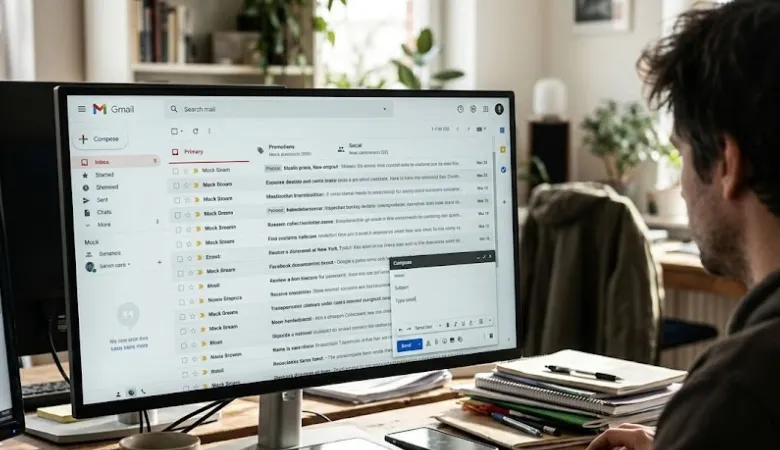
Sending an Encrypted Email is useful when your message contains private or sensitive data. Gmail already protects normal messages with TLS while they travel between email services.
However, TLS is not the same as end to end encryption. If you need stronger protection, Gmail offers extra security options for some work and school accounts.
Does Gmail Encrypt Your Emails?
Yes. Gmail uses Transport Layer Security, also called TLS, for email sent between services that support it. This protection is turned on by default for Gmail users. It helps stop people from reading or changing your message while they send it.
However, the message may not have TLS protection if the other email service does not support it.
You can check the security status of a message in Gmail. Open an email and look at the security details.
A lock icon shows the type of protection used. If Gmail shows that a message is not encrypted, avoid sending passwords, bank details, identity documents, or other private data through that message.
For stronger protection, an Encrypted Email can use S/MIME or Gmail Client side Encryption. These features are mainly aimed at Google Workspace users.
S/MIME uses digital certificates to encrypt messages. Client side Encryption adds another layer because encryption takes place before the message is stored in Google’s cloud.
1. Use S/MIME for Business Email
S/MIME stands for Secure/Multipurpose Internet Mail Extensions. It is designed for secure business email. It uses digital certificates to encrypt messages and can also provide a digital signature.
Gmail supports S/MIME with work and school accounts. Your administrator must first set up the required certificates. The recipient also needs a suitable certificate for encrypted communication. This means S/MIME is not normally available as a simple setting in a free personal Gmail account.
When S/MIME is configured, Gmail can show an enhanced encryption indicator. This helps you check the protection before you send the message.
How to Check S/MIME in Gmail
- Open Gmail and start a new message.
- Add the recipient and write your message.
- Look for the message security option in the compose window.
- Check whether enhanced encryption is available.
If S/MIME is correctly set up for the recipient, Gmail can use it to protect the message.
If the option is not available, do not assume that your email has S/MIME protection. Your account administrator may need to enable it first.
2. Use Client Side Encryption in Google Workspace
Gmail Client side Encryption, or CSE, provides stronger protection for supported Google Workspace accounts. With CSE, the message body, inline images, and attachments receive additional encryption before they are sent to Google’s cloud storage.
There is an important change from many older Gmail guides. Google does not hold the private encryption key used for CSE. Your organization manages the keys. Google states that it cannot access the private keys or the decrypted message content when CSE is used.
CSE is not available on every Gmail account. Google currently lists Enterprise Plus, Education Plus, Education Standard, and Frontline Plus among the Workspace editions that support the feature. Availability can also depend on your organization’s settings.
How to Send a CSE Protected Message
- Open Gmail on your computer.
- Click Compose.
- Look for the Message security option in the compose window.
- Select the option for additional encryption.
- Add your recipient and write your message.
- Check the security indicator before sending.
- Click Send.
The exact options can vary based on your Workspace setup. If you cannot see additional encryption, ask your Workspace administrator whether CSE is enabled for your account.
3. Understand Gmail Confidential Mode
Gmail Confidential Mode is useful when you want more control over a message after sending it. You can set an expiry date and remove access later. You can also stop recipients from using normal Gmail controls to forward, copy, print, or download the message.
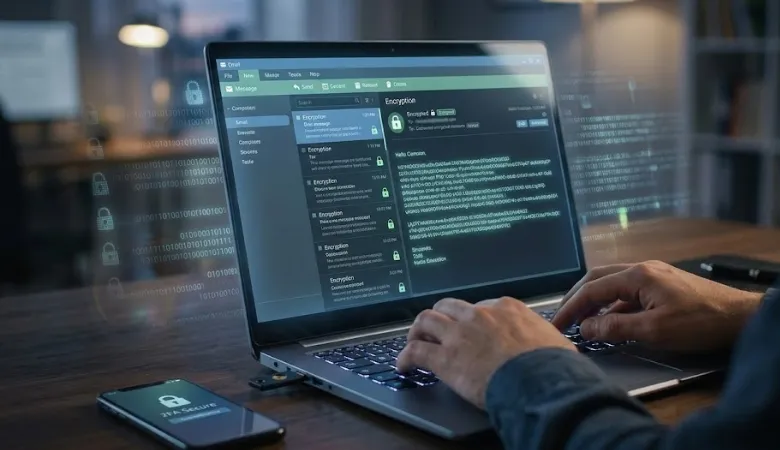
However, Confidential Mode should not be treated as true end to end encryption. A recipient can still take a screenshot or a photo of the screen.
Google also warns that harmful software on a recipient’s device may still allow copying or downloading.
For this reason, I would use Confidential Mode for controlled sharing rather than as a replacement for strong encryption.
For example, it can be useful when sending a private business note that should only be available for a short time.
4. How to Send an Encrypted Email With Confidential Mode
- Open Gmail.
- Click Compose.
- Write your message.
- At the bottom of the compose window, select the Confidential Mode option.
- Choose an expiry period.
- Choose whether a passcode is needed.
- For sensitive messages, an SMS passcode can add another identity check where supported.
- Click Save.
- Then send your message.
You can also remove access to a confidential message before its expiry date. Open the message from your Sent folder and select Remove access.
5. Gmail Confidential Mode Has Limits
Confidential mode is helpful, but it has clear limits. It does not stop a person from photographing the screen. It also cannot protect information after a trusted recipient sees it and shares it in another way.
Therefore, think about the information you are sending before you press Send.
For example, do not send your full password in an email. If you need to share a sensitive file, use a secure file sharing method and give access only to the person who needs it.
6. Check the Encryption Before You Send
Before sending sensitive information, check the security indicator in Gmail. This small step can prevent a common mistake.
If Gmail shows standard encryption, your message is protected by TLS while it is transferred to a compatible mail provider. If you see enhanced encryption, S/MIME is being used.
Additional encryption refers to Client side Encryption. A warning or open lock means you should take care before sending sensitive data.
This is one of the habits I recommend when dealing with private business data. Do not judge security only by the presence of a lock icon. Check what type of protection the icon represents.
7. What Should You Send Through Secure Email?
You may need stronger protection when sending:
- Bank or payment information
- Personal identity documents
- Private business records
- Customer information
- Legal documents
- Confidential contracts
- Private research
- Sensitive company files
Passwords and recovery codes should not be sent by ordinary email. Use a password manager or another secure method instead.
8. Protect Your Gmail Account Too
Email encryption cannot protect your account if someone gets access to it. Your Gmail account should therefore have strong account security.
- Use a unique password.
- Turn on two step verification.
- Keep your phone and computer updated.
- Review recent account activity.
- Remove unknown third party access.
- Be careful with unexpected attachments and links.
This matters because an attacker who enters your account may be able to read messages that were already received. Encryption during email transfer does not solve an account takeover.
9. Be Careful With Encrypted Attachments
Extra encryption can affect attachments. Google states that Gmail CSE has a 5 MB upload limit for attachments and inline images when additional encryption is turned on.
Some file types are also blocked because encrypted attachments cannot be scanned for viruses in the normal way.
This is important in real work. If you send a sensitive document, check both the security setting and the file itself. A secure message does not make a dangerous attachment safe.
10. Is an Encrypted Email the Same as End to End Encryption?
No. An Encrypted Email can mean different things depending on the protection being used. TLS protects email while it travels between compatible mail systems. S/MIME provides stronger message protection with certificates.
Client side Encryption provides an additional layer in supported Google Workspace accounts. Confidential Mode controls access but is not a replacement for true end to end encryption.
What Is the Best Gmail Security Option for You?
Your choice depends on the type of Gmail account you use.
For a normal personal Gmail account, Gmail’s standard TLS protection is enabled automatically. You can also use Confidential Mode when you need expiry dates or access controls.
For a business or school account, S/MIME may be available if your administrator has configured it.
For supported Google Workspace editions, client-side encryption provides stronger protection because your organization manages the encryption keys.
For highly sensitive information, do not rely on one security feature alone. Use a secure account, strong authentication, safe file sharing, careful recipient checks, and the right encryption method.
Most importantly, always match the security method to the data you are sending. Your email may be protected while it travels, but security also depends on your account, the recipient, the device, and how the information is handled after delivery.
Also Read: What is Email Spoofing in Cyber Security?

WebAudience is about technology and web-internet website covering Tech, Online Business, Digital Marketing, Gadgets, Apps, Reviews, Software and more related to the web.
Leave a Comment
Recent Posts
What is Email Spoofing in Cyber Security? How to Identify?
November 4, 2026
How to Send Encrypted Email in Gmail
September 21, 2026
How to Do Keyword Research: Top SEO Tools in 2026
September 9, 2026
What Is SEO? Search Engine Optimization: How To Do in 2026
September 2, 2026
How to View Saved Passwords in Chrome
August 26, 2026
What is Cryptocurrency? Types and How They Work
August 13, 2026
Web Audience